OneCloud CX | Ringtone and Alerts Setup Guide
Ringtone and Alerts Setup Guide

This article provides step-by-step instructions to change the volume of incoming calls/chats in the OneCloud CX Agent Desktop system.
Purpose
The Ringtones and Alerts setting lets you customize the volume of external chat and preview record notifications and incoming calls.
Accessing Settings
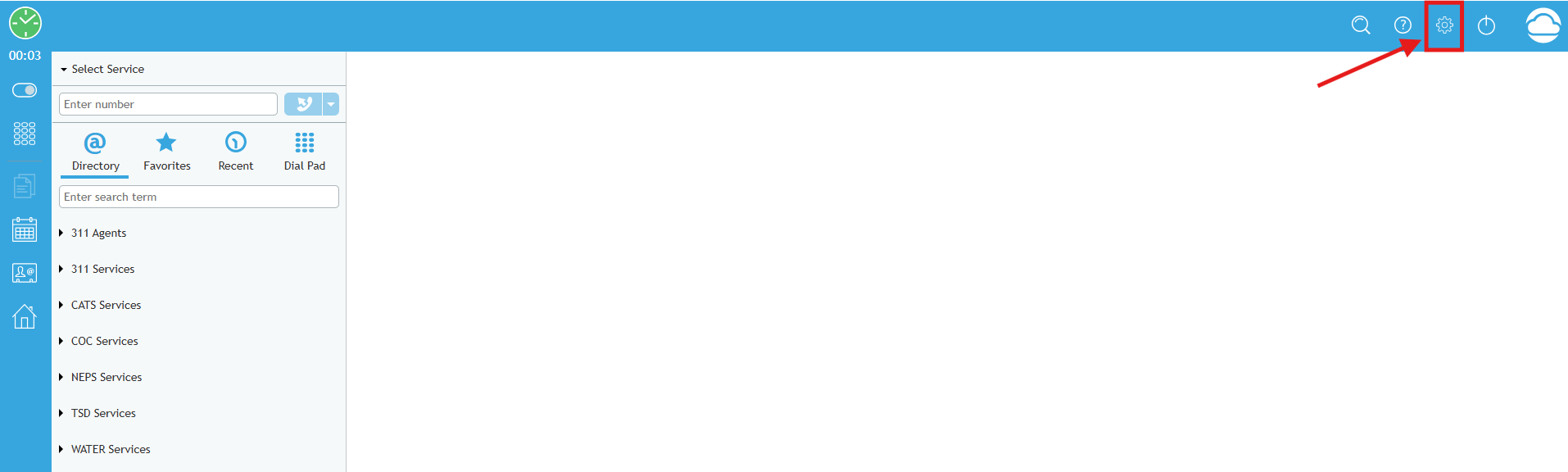
1. Select the gear icon (⚙️) in the upper-right corner of the interface
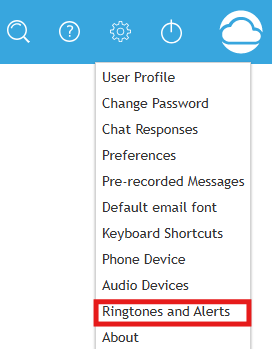
2. Navigate to "Ringtones and Alerts" in the settings menu
Customizing Audio Notifications
You can adjust volume levels for various communication channels:
- Incoming calls
- Chat notifications
- System alerts
Making Adjustments
Simply use the slider interface and checkbox to modify audio output according to your preferences:
[Low] ◯───────○───── [High]
- External chat and preview record notification - Controls the volume of a new external chat interaction and new preview record notifications
- External chat message notification - Controls the volume of external chat message notifications
- Internal chat notification - Controls the volume of internal chat message notifications
- Incoming calls - Controls the ringtone volume of incoming calls
Related Articles
Analytics Wallboard Guide | OneCloud Support Portal
Welcome to the call center analytics user guide. This article has been designed to help familiarize you with the basic layout, as well as guide you through creating an analytics board and some advanced features. Accessing the Analytics Board Note: To ...
OneCloud for HubSpot Setup Guide | OneCloud Support Portal
Setup Users may install the OneCloud for HubSpot application from the HubSpot App Marketplace or using this link. If you do not have the required permissions to install the application, select Request to install. Your HubSpot admin(s) will be ...
OneCloud CX | How to Answer an Incoming Call
How to Answer an Incoming Call When a call is delivered to your desktop, you will hear a ringing tone in your headset, and you will see a call alert pop-up window indicating an incoming call. Click Accept to take the call. Your state will change from ...
AlertBlast User Guide | OneCloud Support Portal
The Basics You can access your account by navigating to myalertblast.com or through myonecloud.com. The home screen provides a brief overview of the steps to follow to create and send a Message. Contact Groups must be created before the sequence of ...
OneCloud Connect Extension: How to Setup
OneCloud Connect Extension: How to Setup This Guide will go over the general setup of our OneCloud Connect Extension as well as go over key features such as click-to-dial, call history, CRM screen pops, etc. Please Note: This product can be ...