OneCloud Integration | Setting Up HubSpot CRM Integrator in the UCaaS Portal
Guide to Setting Up the HubSpot CRM Integrator in the UCaaS Portal
You must have an Admin account set up in HubSpot and be an Office Manager Scope in the UCaaS Portal to setup this integrator and access the Recording links.
 User/Agent Identity:
Step 1: Access the OneCloud Portal
a. Login to your OneCloud Portal
https://myonecloud.com/portal/home
Step 2: Navigate to Integration Tab
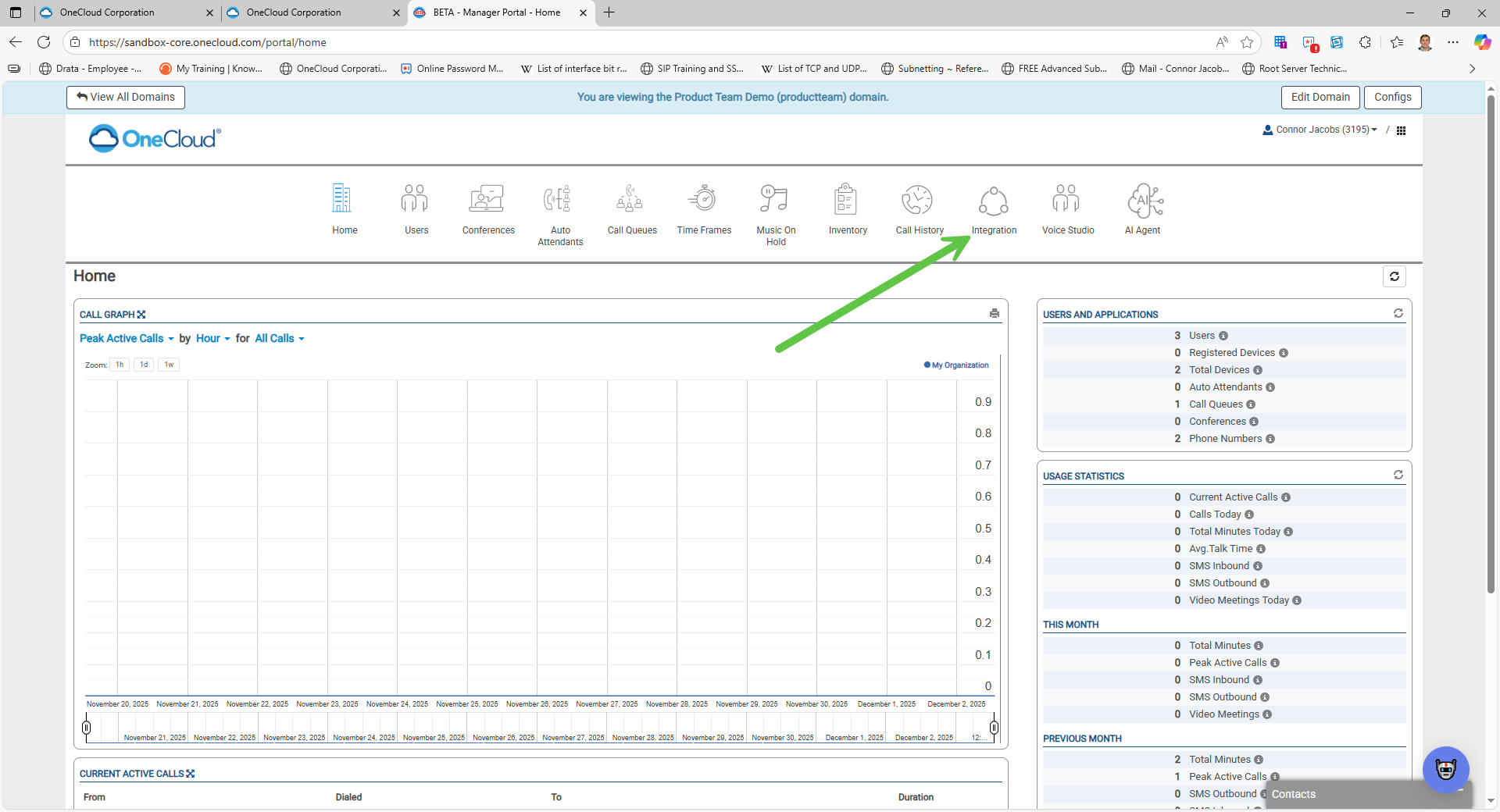
Step 3: Enable HubSpot CRM Integration
Select "Enable" next to HubSpot CRM (this will launch a window).
Step 4: Link Your Account
a. Enter Login Credentials
b. Choose Account
c. Allow for the connection by selecting "Connect App"
Step 5: Integration Successfully Enabled
The integration is now Enabled in the OneCloud Portal.
a. Successful Integration confirmation
Step 6: Enable Users (Click the Pencil Icon)
Here you can enable specific users to send Call, SMS, and Meeting Data to HubSpot CRM.

Default Tokens:
Step 7: Adding Extension number to HubSpot User
(This process is critical for matching the UCaaS agent to the HubSpot User if the agent does not have an Email Address)
Please Note: Once a User in HubSpot is created with a specific email address that address cannot be changed.
1. Select on the "Gear" Icon to go to Settings
2. Once in Settings go to Users & Teams
3. Use the Search function in Users & Teams to locate the specific users
4. Select on the User's Name to access Account
5. Select "Preferences" out of the Columns
6. Add User's Extension Number into the Extension Box
Please Note:
HubSpot will require a phone number within the field next to extension, this can be the User's DID, Main Number, etc.
Step 8: Accessing Calls
Below is a Call Example within HubSpot:
How to Locate Calls:
Step 9: Accessing Call Recordings
Additionally, for a call recording to be attached the UCaaS user who initiated or received the call must have Call Recording enabled on the User Level.
How to Access the Recording Links within HubSpot:
5. select Send Code
4. Authenticate via Login with OneCloud (Continue to last step if authenticating through login with OneCloud)
6. Enter Code received on email
