OneCloud Integrations | How to Setup Service Titan Integrator in the UCaaS Portal
OneCloud Integrations | How to Setup Service Titan Integrator in the UCaaS Portal

Please Note: You must be an Office Manager in the UCaaS Portal and an Administrator within the Service Titan CRM to configure this Integrator

Cross-Platform User Matching
OneCloud's integrations utilize the email address of the UCaaS User as an initial lookup for matching the assigned agent in the Service Titan Platform
No Email Address?
OneCloud's integrations utilize the UCaaS user's extension number as a backup lookup variable for users that do not have email addresses associated to their Service Titan users.
For a How To on adding the Extension number to a Service Titan user please use the following link for a step-by-step guide.
Service Titan Knowledge Base Article: Adding an extension to a user in Dialpad
For a How To on adding the Extension number to a Service Titan user please use the following link for a step-by-step guide.
Service Titan Knowledge Base Article: Adding an extension to a user in Dialpad
Setup Steps:
Step 1: Login to UCaaS Portal
Step 2: Go to the "Integration" Tab and Select "Enable" next to Service Titan
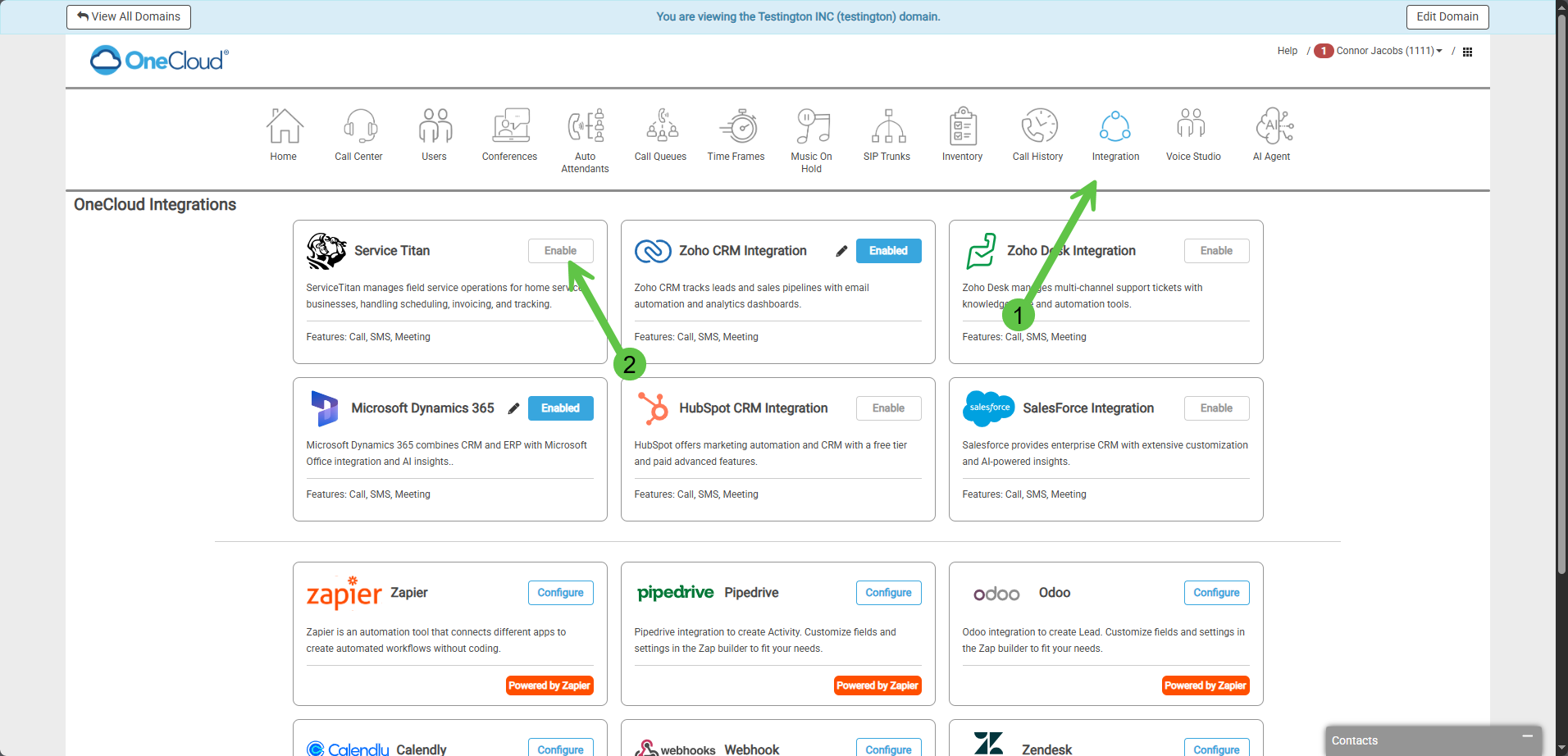
Step 3: Follow Setup Instructions
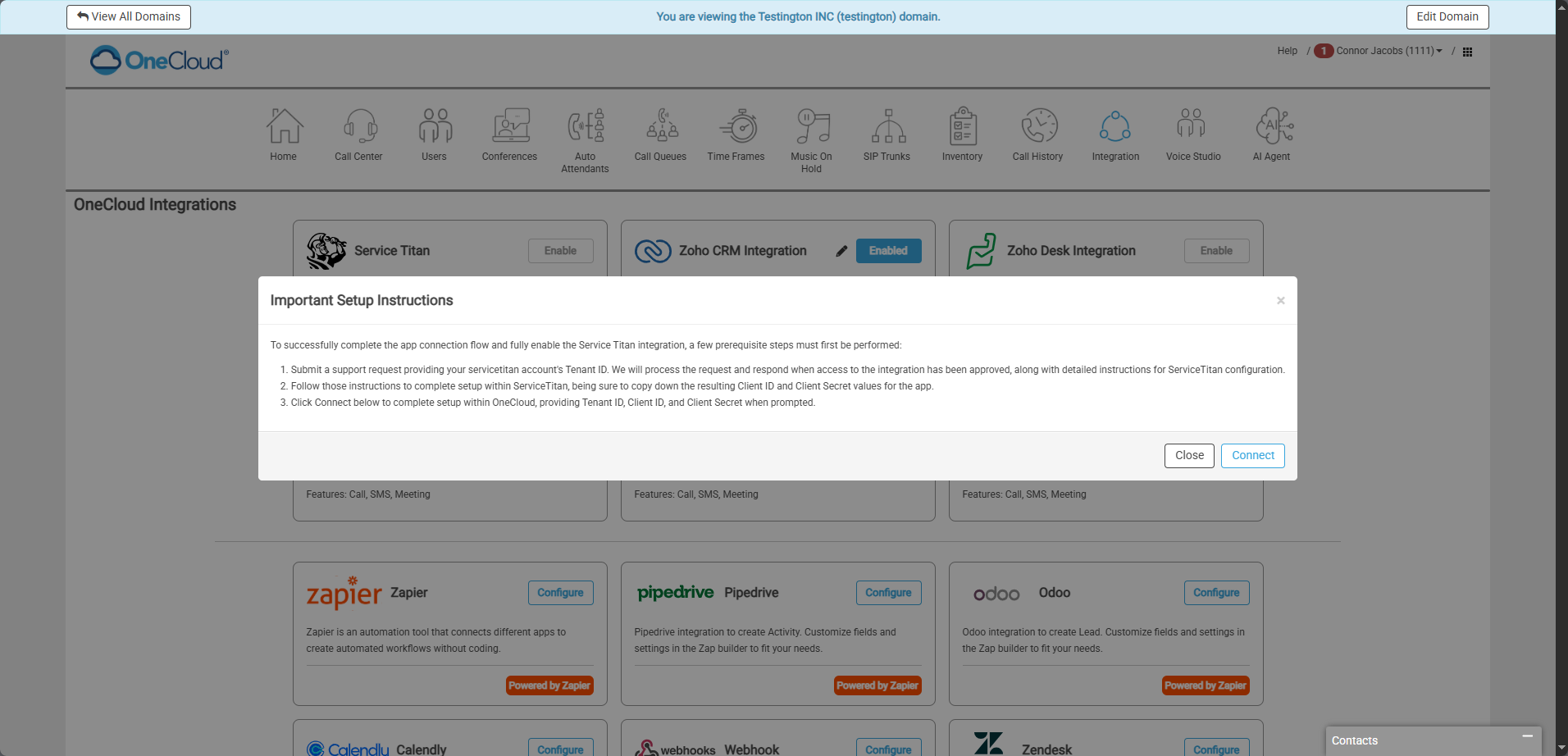
Instructions:
1. Submit a support request providing your ServiceTitan account's Tenant ID. We will process the request and respond when access to the integration has been approved, along with detailed instructions for ServiceTitan configuration.
2. Follow those instructions to complete setup within ServiceTitan, being sure to copy down the resulting Client ID and Client Secret values for the app.
3. Click Connect below to complete setup within OneCloud, providing Tenant ID, Client ID, and Client Secret when prompted.
Step 4: Fill in Requested Information for Connection
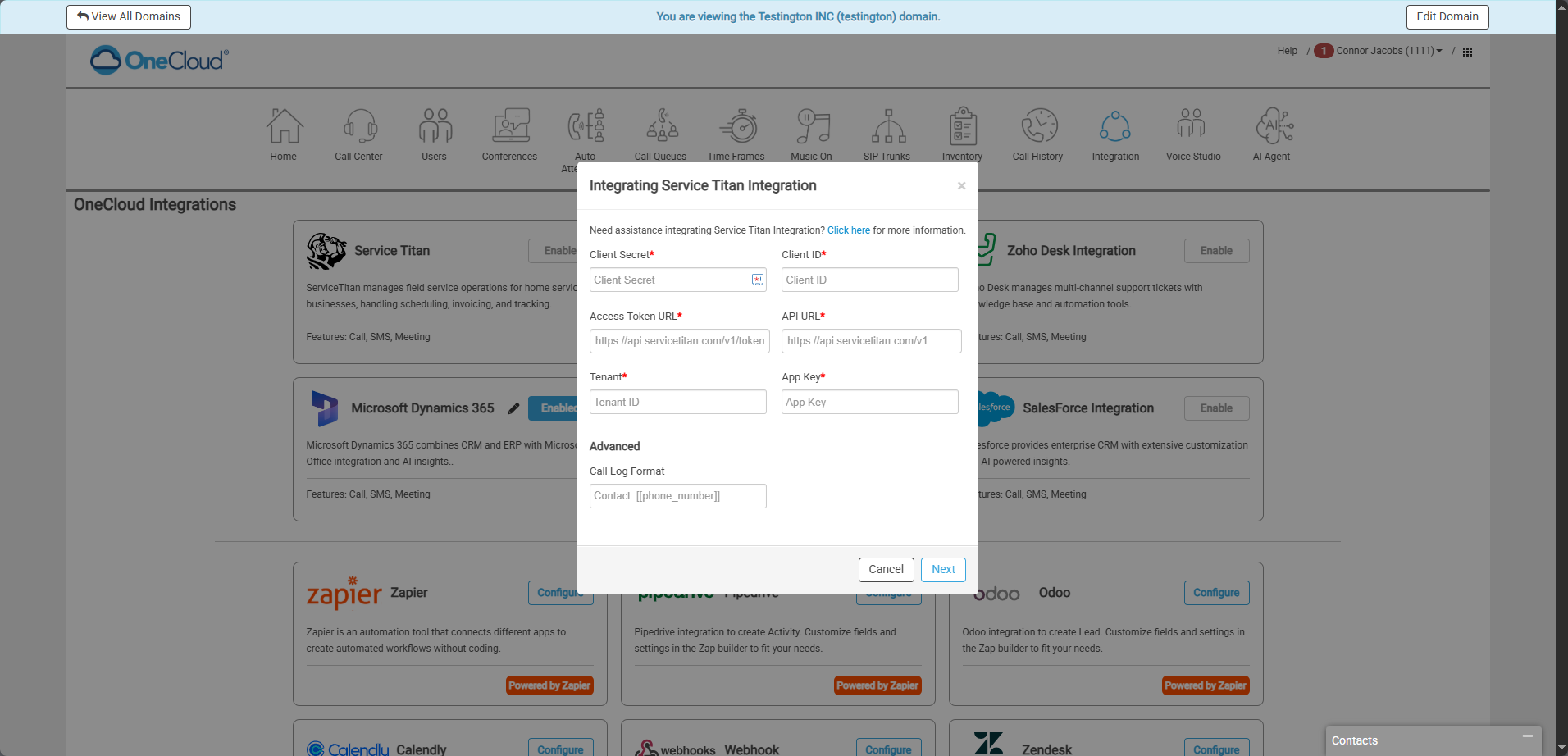
Step 5: CRM Integrator Connected Confirmation
Integration Successfully Enabled Message:

Integrator Enabled:
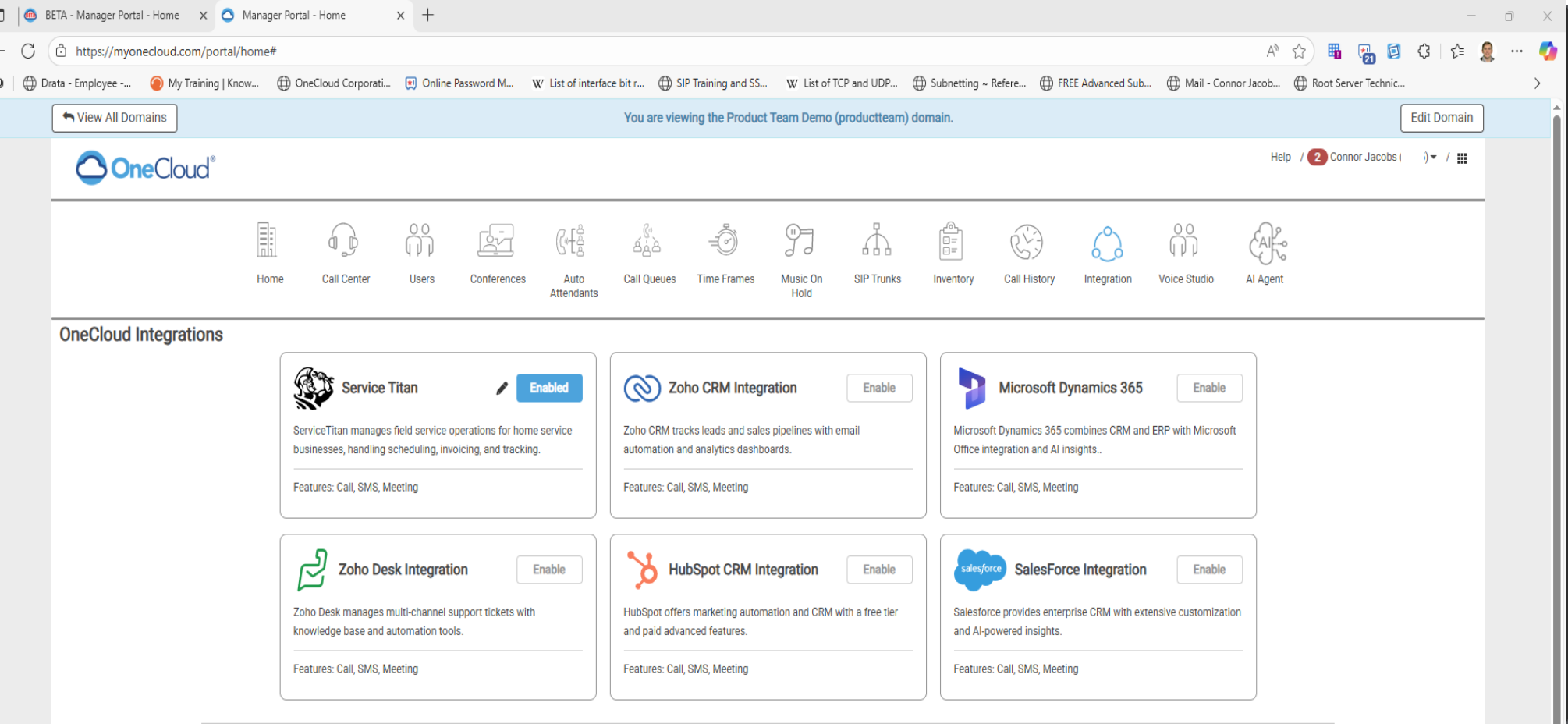
Integration Successfully Enabled Message:
Integrator Enabled:
Step 6: Selecting Users for specific data to be sent to the CRM (Call Data, SMS Data, and/or Meeting Data)
a.
b. Accessing Tokens via Advanced Section
Please note: Any changes made to the tokens may alter the data pushed over to the Service Titan platform.
Contact: [[phone_number]]
Employee: [[employee]]
Call Direction: [[call_direction]]
Call Time: [[call_start]]
Call Event: [[call_event]]
Recording: [[recording_url]] [[transcription]]
Employee: [[employee]]
Call Direction: [[call_direction]]
Call Time: [[call_start]]
Call Event: [[call_event]]
Recording: [[recording_url]] [[transcription]]

If you have any questions regarding the configuration of the integrator, feel free to reach out to OneCloud Support