OneCloud Integrations | How to Setup the Zoho Desk Integrator in UCaaS Portal
OneCloud Integrations | How to Setup the Zoho Desk Integrator in UCaaS Portal
 Administrator Access Required:
To set up this integration, you will need administrator access to your Zoho Desk account.
 User Identity Matching:
Email Address Identification: The OneCloud Portal uses email addresses to identify users in Zoho Desk.
No Email Present? If a UCaaS Agent/User doesn't have an email address, the Zoho Desk administrator can add the user's extension number in Zoho Desk to enable identification.
Step 1: Login to the OneCloud Portal
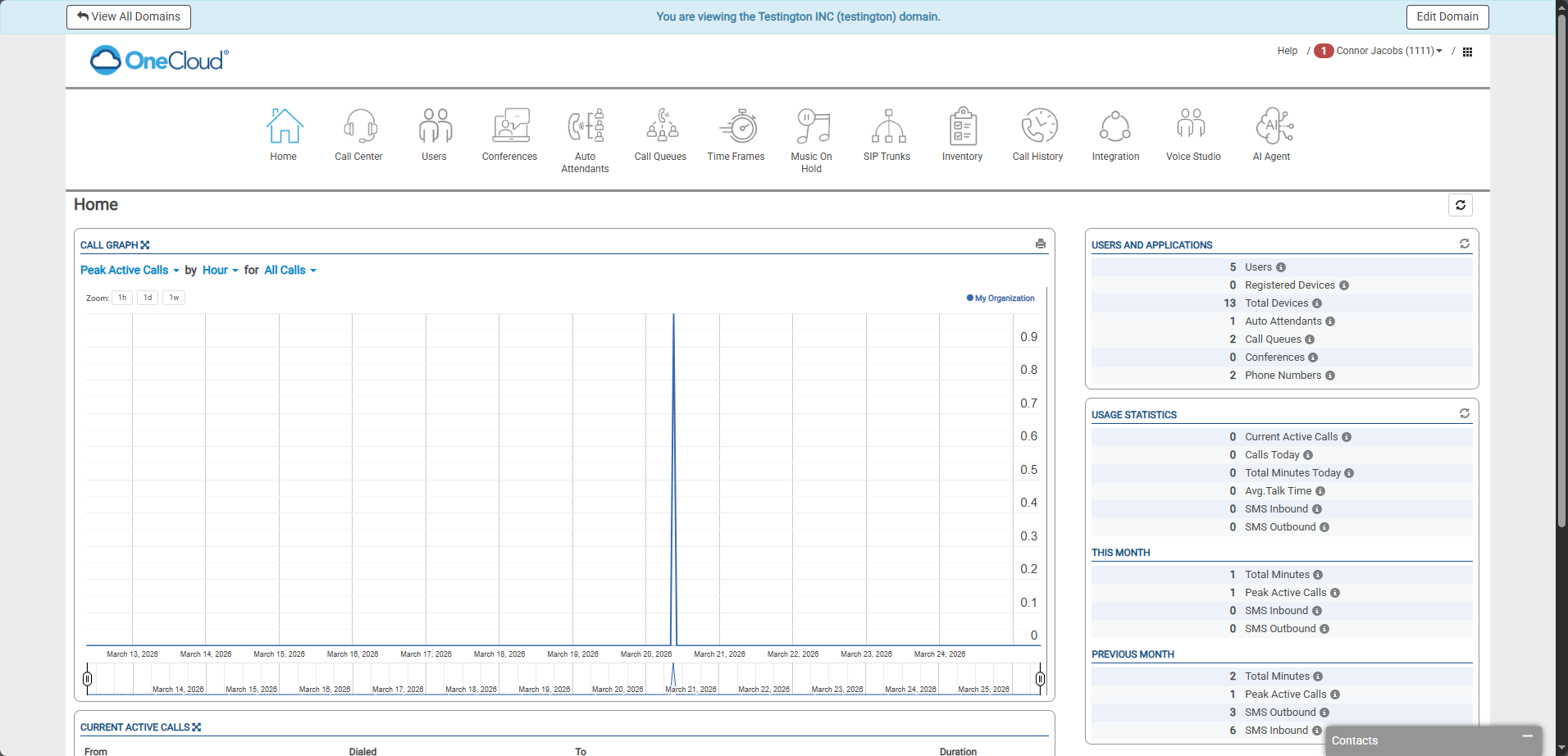
Step 2: Go to the Integrator Tab
Step 3: Select on the "Enable" Button on Zoho Desk
(This will Launch a New Window)
Step 4: Login to Zoho Desk
Step 5: Accept the Connection
Step 6: Integration Successfully Linked
Screen Prompt:
Icon Prompt:
Integrator Enabled Successfully:
Step 7: Adding Users to the Integrator
a. Hit the "Pencil" Icon
b. Enable Users for Calls, SMS, and Meetings Data
c. Accessing Tokens via Advanced Section
Please Note: Any changes to the tokens may alter the data being pushed to the Zoho Desk platform.
Contact: [[phone_number]]
Employee: [[employee]]
Call Direction: [[call_direction]]
Call Time: [[call_start]]
Call Event: [[call_event]]
Recording: [[recording_url]] [[transcription]]
Step 8: Confirming the User's information in Zoho Desk
User Identity Matching:The OneCloud Integrator uses email address identifications to verify the specific users across the platforms to allow for the data to reach the correct agent.
No Email Present? If a UCaaS Agent/User doesn't have an email address, the Zoho Desk administrator can add the user's extension number in Zoho Desk via the Extension Field.
This Identification is critical for the Integrator to feed the data from the UCaaS environment over to Zoho Desk and associate it to the correct end user.
The following instructions goes over how to verify or add the email or extension number to the Zoho Desk User.
a. Going to Zoho Desk: Selecting Settings in the Top right and then Agents under User Management
b. Search the User's to confirm email or extension number is under the User
c. Select the Fields to add Email or Extension
Step 9: Accessing Call Recordings
Please Note: For security compliance OneCloud provides a link to the recording in the Notes/Description Section of the Call Recording.
To access call recordings via the recording links, you must be a minimum of an Office Manager Scope within the UCaaS portal.
To access call recordings via the recording links, you must be a minimum of an Office Manager Scope within the UCaaS portal.
Additionally, for a call recording to be attached the UCaaS user who initiated or received the call must have Call Recording enabled on the User Level.
UCaaS User Recording Settings:
How to Access the Recording Links within Zoho Desk:
1. Select Activities Module
2. Select Calls
3. Select Designated Call
4. Select "More" similar to above to expose the full description
5. Select call recording link within Notes/Description Section
(This will Pop a new Tab)
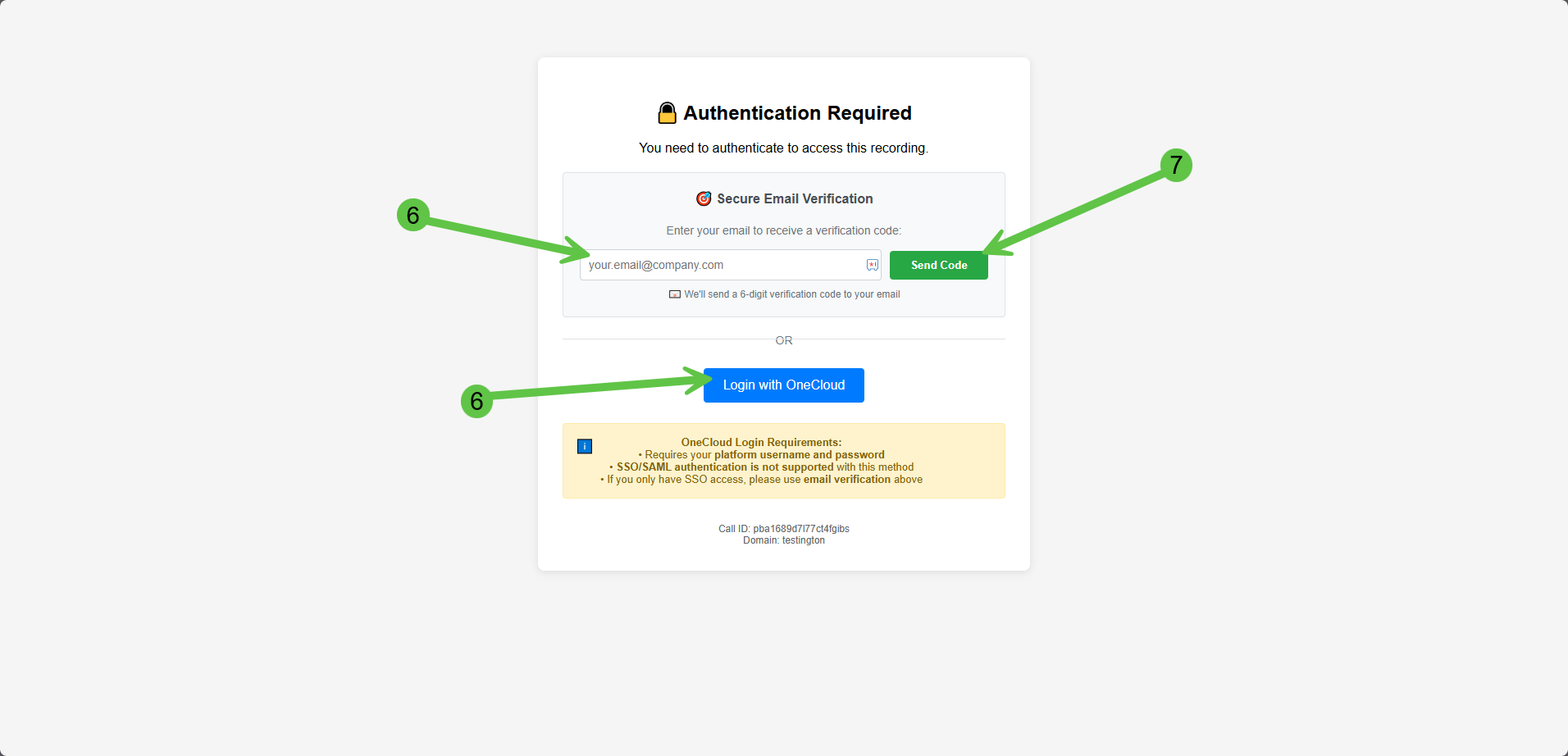
(This will Pop a new Tab)
6. Enter your email address for authentication (Authenticate by either Login with OneCloud or Enter email address and send code)
7. Select Send Code
6. Secondary Option: Authenticate via Login with OneCloud (Continue to last step if authenticating through login with OneCloud)
8. Enter Code received on email
9. Hit Verify Code
9. Hit Verify Code
Once authenticated, you will have access to listen to the call recording

If you have any questions or issues please reach out to OneCloud Support